






The original problem is simply a software module (sim connect) that has NOT been installed by your download of Prepar3d. In 95% of cases this is a non issue, but if you are reading this then it means you are the 5% of missing sim connect. After your ELITE driver has been successfully installed. and your menu looks like this:

Some simple installs will cure this, if you run the following installers you will have all the required software.
C:\Program Files (x86)\Lockheed Martin\Prepar3D v2\redist\Interface\FSX-RTM\retail\lib\SimConnect.msi
C:\Program Files (x86)\Lockheed Martin\Prepar3D v2\redist\Interface\FSX-SP1\retail\lib\SimConnect.msi
C:\Program Files (x86)\Lockheed Martin\Prepar3D v2\redist\Interface\FSX-SP2-XPACK\retail\lib\SimConnect.msi
By running all these installers now your Sim connect will be up to date, and your new menu will look like this:
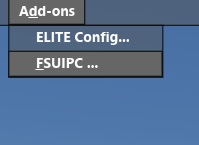
It is unfortunate this is also a bug that has come in from V2 and still is a problem in V3 of Prepar3D installation routine, but at this time this is the only work around.